How to find out how much hard drive space you have remaining
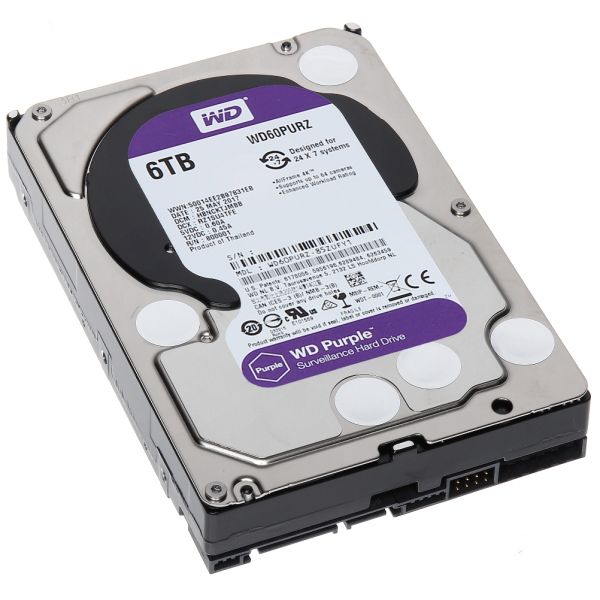
To find out how much hard drive space is remaining on your computer, the steps depend on your operating system. Here’s how to do it on the most common ones:
Windows
-
Open File Explorer (press
Windows + E). -
In the left pane, click on “This PC”.
-
You’ll see your drives listed under Devices and drives.
-
Each drive will show:
-
Total size
-
Free space available (this is your remaining space)
-
✔️ Example:
“Local Disk (C:) – 120 GB free of 250 GB”
macOS
-
Click the Apple menu () in the top-left corner.
-
Choose About This Mac.
-
Go to the Storage tab.
-
Your available space will be shown per drive, along with how it’s being used (e.g., apps, documents, system, etc.).
✔️ Example:
“Macintosh HD – 80 GB available of 256 GB”
Linux (Ubuntu / Debian / similar)
Option 1: Using GUI (if available)
-
Open File Manager.
-
Look at the sidebar or go to Properties of your main filesystem (
/) to see free space.
Option 2: Using Terminal
-
Open Terminal.
-
Type the command:
-
Look for the line with
/under the Mounted on column. It will show Used and Available space.
✔️ Example:
